

This article explores common issues users have with login as well as some questions to answer if you still have trouble. If you still need assistance after reading this article, we can save a lot of time if you send us answers to these with your inquiry.
How to Fix Common Issues
Usually when users have trouble logging in, it is based on one of the following depending on your stage:
1) You recently created your account, but have not confirmed it. Please check your email for a confirmation email from Living.Fit to confirm your account. We can confirm this has been sent.
-- Make sure to verify you are trying to access your content with the same email address you purchased with. Your programs are loaded to your purchasing email address.
2) You need to reset your password. Note* if you try to do this and receive a message that your account is not recognized, revert to number 1.
If you have never accessed your account, create it at https://app.living.fit/signup using the same email address used for your purchase.
4) You are receiving a message about incorrect parameters. This means there is most likely an extra space after your email address. Make sure you use the delete or backspace to remove the space. Then login.
If you are logged in but cannot see your content, check that you are using the same email address used for your purchase. Sign out, close and reopen your browser, then sign in again. If your content is still missing, email info@living.fit with your purchasing email address, order or program name, device and app/browser version, and a screenshot of the error.
** Want to clear your cache, but not lose other website data? Follow this:
How to hard refresh browser and clear cache if you're using Chrome.
While on living.fit, users should follow the instructions below. This will be just for Living.fit
Chrome and Windows:
To hard refresh on Google Chrome on Windows, there are two ways you can do it:
Hold down Ctrl and click the Reload button.
Or Hold down Ctrl and press F5.
Chrome and Mac:
To do a hard refresh on Google Chrome on Mac, there are two ways that you can do it:
Hold down Shift and click the Reload button.
Or Hold down Command, Shift and click the ‘R’ key.
Accessing On Browser
Part 1 - Open https://app.living.fit to sign in to workouts and courses.
Part 2 - Use the same email address used for your purchase. If this is your first visit, select Sign up now or go to https://app.living.fit/signup. If you have forgotten your password, use https://app.living.fit/forgot-password.
Part 3 - After signing in, select My Content to find your workouts and courses. If a program is missing, follow the troubleshooting steps above.
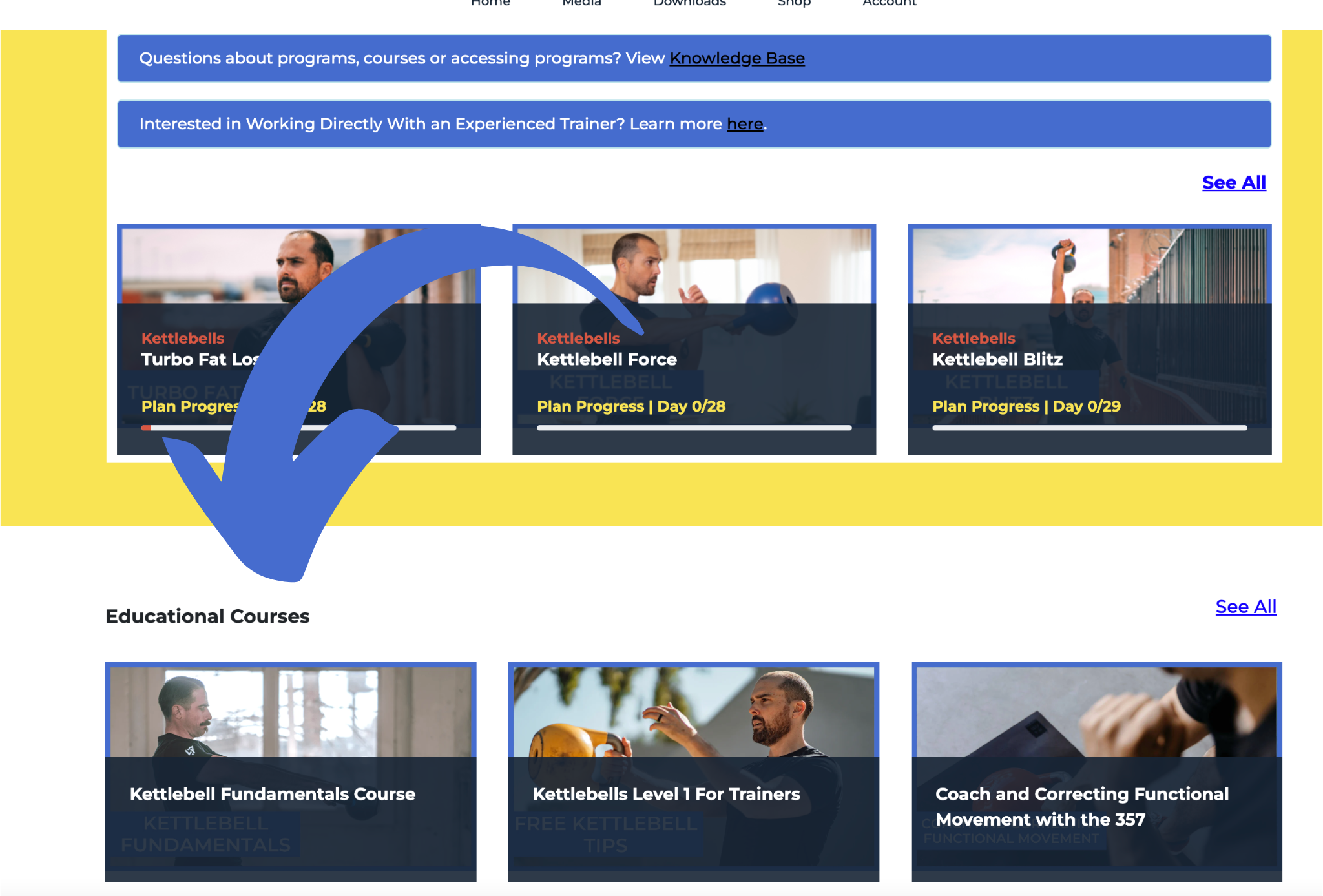
Course Are Below:
Common Issues For App Access
Make sure you are logging in with the same email address you purchased with
Check iOS or Android to make sure you are using the latest version of the app, make sure to update to latest version - Most users forget this step, but checking for updates in the iOS or Android store often fixes issues
Please check the items below as well as send us the answers if you still cannot login to the app:
When was the last time you had access to the programs?
Are you using the mobile app or browser?
If you are using the mobile app, has it been updated to the latest version?
Can you login successfully?
Do you have a "See All" button visible? If so, what happens when you click on that?
If you see some workouts, what workouts are missing?
Can we get a screenshot of what you are seeing?
If you cannot sign in, use the password-reset option on the official sign-in screen and choose your own unique password. Never send your password or reset link. Support does not need your password to investigate.